Authentication Technical Specifications
In the development of digital identity, the INAPAS system offers a strong and flexible authentication solution. INAPAS provides two different authentication mechanisms: QR Code Scan (Web) and QR Code Deep Link/Tap (App). This article outlines both flows, providing insight into each step in the process.
INApas Authentication Methods
1. QR Code Scan: This method involves the user scanning the QR code displayed on the relying party's website using the INAPAS mobile app.
2. Deep Link QR Code (Tap): In this method, the user simply taps the QR code displayed on the relying party's website, which then triggers the opening of the INAPAS mobile app.
Both methods ensure a secure authentication process while meeting user preferences and needs in various scenarios.
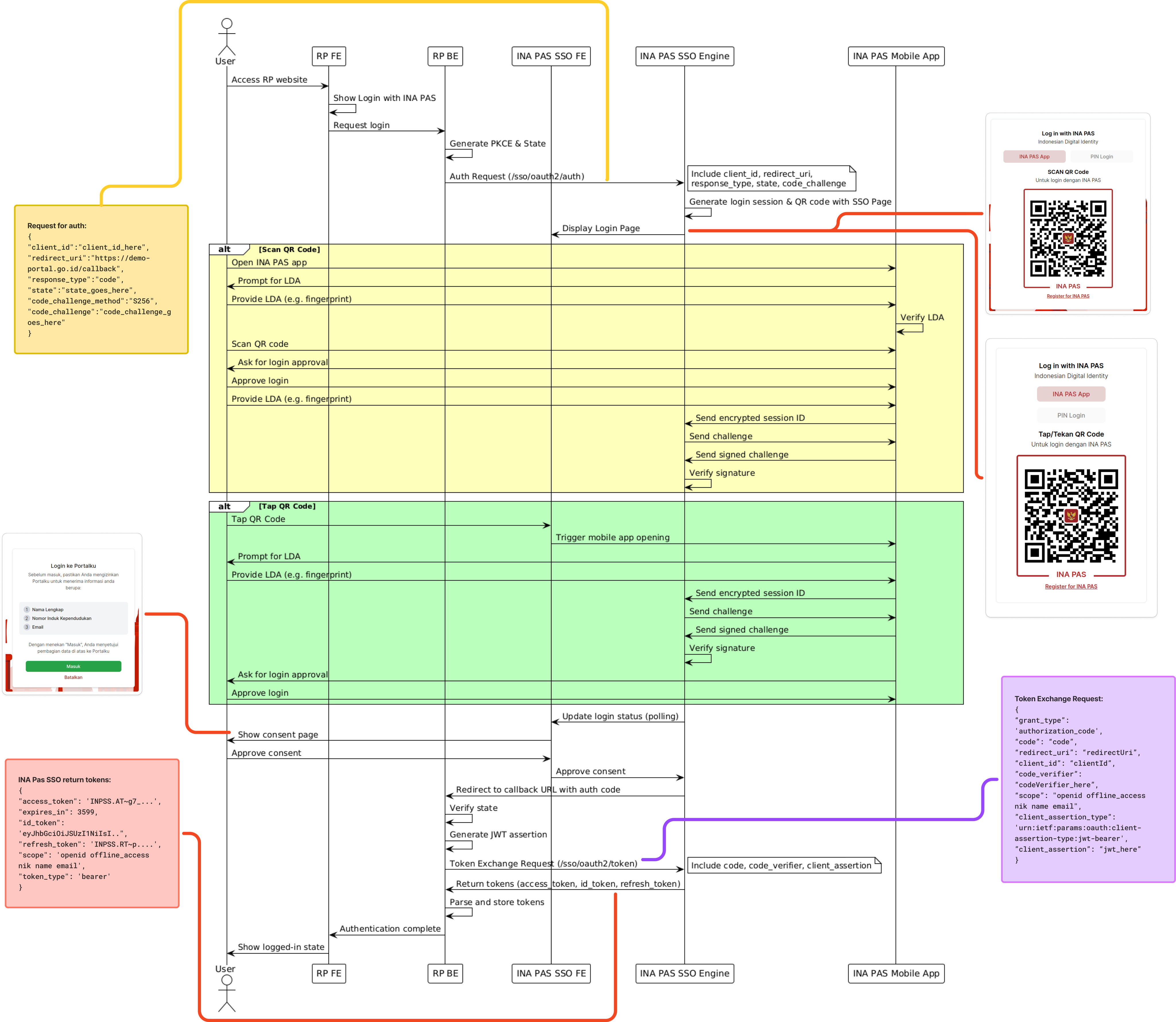
Common Initial Steps
Each authentication method through INApas begins with the following steps:
1. Access to Relying Party (RP) Website
The user accesses the RP website to start the login process.
2. Display of INApas Login Options
The frontend interface (FE) of the RP displays the login options with INApas.
3. Login Request to INApas
User selects to login using INApas.
4. PKCE and State Parameter Generation
The backend (BE) of the RP generates PKCE (Proof Key for Code Exchange) parameters and state to ensure security.
5. Authentication Request to INApas SSO Frontend (FE)
The authentication request is sent to INApas SSO FE with important data such as client_id, redirect_uri, response_type, state, and code_challenge.
6. Request Processing by INApas SSO Engine
INApas SSO Engine processes the authentication data and creates a login session, then generates a login page with QR Code.
Authentication Methods
After the initial step, the authentication process can proceed with one of the following two methods:
Method 1: Scan QR Code
1. Interaction with Mobile Application
-
The user opens the INApas app on the mobile device.
-
The app requests local device authentication (LDA), such as fingerprint or PIN.
-
The user provides the LDA authentication, and the app verifies it.
2. QR Code Scanning and Verification
-
The user scans the QR Code displayed on the login page using the INApas app.
-
The app sends an encrypted session ID to INApas SSO Engine.
-
INApas SSO Engine sends a challenge to the app.
-
The app replies to the challenge with a digital signature.
-
INApas SSO Engine verifies the signature.
3. Login Approval
-
The application requests login approval from the user.
-
The user approves the login, and the application may request additional LDA for further security.
Method 2: Tap QR Code
1. Deep Link Method (Tap QR Code)
-
Instead of scanning the QR Code, users can simply tap the QR Code on the login page.
-
This action will directly open the INApas application on the mobile device.
2. Interaction with Mobile Application
-
The application requests LDA authentication, as in the Scan QR Code method.
-
The user provides LDA authentication, and the app verifies it.
3. Verification Process
-
The application sends an encrypted session ID to the INApas SSO Engine.
-
Challenges and responses are handled as in the Scan QR Code method.
4. Login Approval
-
The application requests login approval from the user.
-
User approves the login.
Common Final Steps
After successful authentication by either method, the process continues with the following steps:
1. Approval and Authorization
-
The RP frontend displays the approval page to the user.
-
The user approves the request.
-
INApas SSO FE processes the user's consent and redirects the user back to the callback URL with the authorization code.
2. Token Exchange
-
Backend RP verifies the state and generates a JWT assertion.
-
The token exchange request is sent to INApas SSO Engine.
-
INApas SSO Engine returns access_token, id_token, and refresh_token.
3. Authentication Completion
-
The RP backend processes and stores the received token.
-
The user's login status is marked as complete.
-
The user is displayed as logged in on the RP frontend page.
Conclusion
The INAPAS digital ID system demonstrates a sophisticated approach to user authentication by providing two convenient methods. Whether through Scan QR Code or Tap QR Code, the system maintains a high level of security through multi-factor authentication, device verification, and secure token exchange.
This two-method approach meets a wide range of user preferences and device capabilities, thereby enhancing the overall user experience while maintaining strong security standards. As digital identity solutions evolve, systems like INAPAS set the benchmark for balancing security, convenience, and flexibility in online authentication.